Extracting Images from PDF Files
Introduction
Sometimes a person might need to extract an image from a PDF file. It's not very hard, but finding the right tools to do it can be tough.
There are some commercial tools available (for Windows anyway), but since both I and the people whom this tutorial is intended to help are poor, this tutorial will focus on free tools. (Incidentally, if you do have money to burn, I would recommend using PDF Extract TIFF.)
Windows
Assumptions
This tutorial assumes the following things:
- You know how to use the DOS commandline (change directories, run commands, etc.)
- You have obtained the PDF file(s) and put them into a directory of their own.
- You have permission (such as under fair use rules) or don't need permission to modify these files.
Software Needed
Here's the tools we will use:
- pdfimages (part of the Xpdf package) – Download ZIP
- Irfanview
Please make sure pdfimages.exe is saved somewhere in your path (e.g., C:\Windows\system32) and that Irfanview is installed before continuing.
Steps
These steps assume the PDF files are in a directory called C:\pdfs and that the PDFs are named something like 0001.pdf, 0002.pdf, 0003.pdf, etc.
-
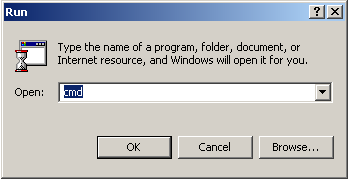
Open up your DOS prompt (Start->Run, type in "cmd" or "command" and then "Run")
-
Navigate to C:\pdfs
C:\> cd C:\pdfs Extract the images from the PDF files:
-
To extract from just one file, run the following command:
C:\pdfs> pdfimages 0001.pdf 0001This will extract the image and name it 0001-000.pbm. If there are multiple images, they will be sequential like 0001-000.pbm, 0001-001.pbm, 0001-002.pbm, etc.
-
To extract from multiple files, run the following command:
C:\pdfs> for %f in (*.pdf) do pdfimages %f %fThis will extract all the images in each of the files and name them 0001.pdf-000.pbm, 0002.pdf-000.pbm, 0003.pdf-000.pbm, etc.
-
At this point, your image files are extracted as PBM (Portable Bitmap) files. If these are ok for your purposes, then you are done; otherwise, continue on to convert the files to TIFF.
-
Before we go on, exit from DOS.
C:\pdfs> exit -
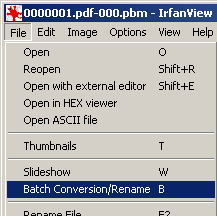
To convert the PBM files to TIFF files, we will use Irfanview. Open one of the PBM files in Irfanview (doesn't matter which one) and then from the File menu select Batch Conversion/Rename
-
Where it says "Files of type:" select "PBM/PGM/PPM - Portable Bitmap"

-
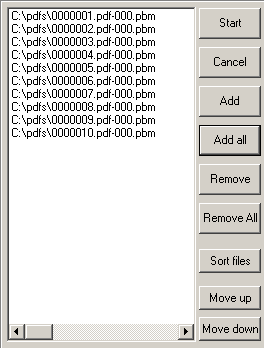
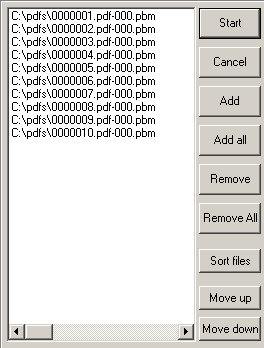
On the left, select "Add all". A list of PBM files will appear
-
Under "Batch conversion settings:" check the "Use advanced options" checkbox and then click on "Set advanced options".

Under the "Set advanced options" dialog box, make the following selections:
- Check the "Resize" checkbox
- Select the "Set new size as percentage of original" radio button
- Make sure both Width and Height are 100%
- Check the "Preserve aspect ratio" checkbox
- Make sure "Set DPI:" is set to 300
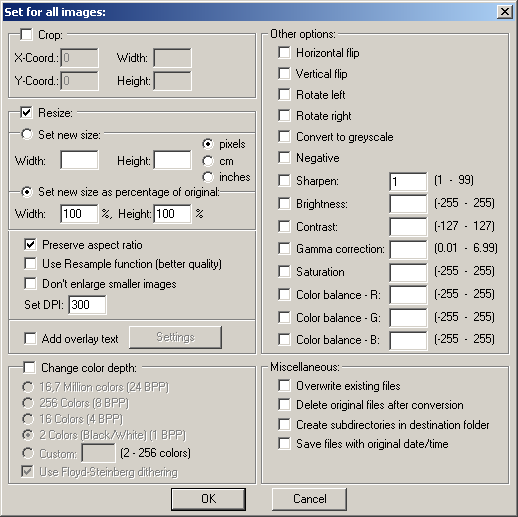
- Click "Ok" to exit from the "Set advanced options" dialog box.
-
Under "Batch conversion settings:" again, make sure the "Output format:" is set to "TIF - Tagged Image File Format".
-
On the left side again, select "Start".
-
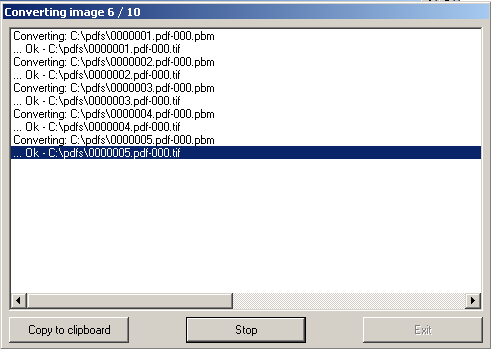
A "Converting images" dialog box will open. Once the images are done converting, click "Exit".
That's it! You've got your TIFF files, nicely extracted. Do what you will with them.
Modifications
Irfanview has a lot of options for converting image files. You may find that you want to use some other file format, you might want to make thumbnails, etc. Play around — have fun!
Linux
Coming soon...


